Have you ever wondered if you could use your Xbox controller to play games on your iPhone? If so, the answer is yes! Connecting your Xbox controller to your iPhone is simple and takes no time at all. In this guide, you'll learn how to connect your Xbox controller to your iPhone, along with a few troubleshooting tips to help fix common pairing issues if they occur.
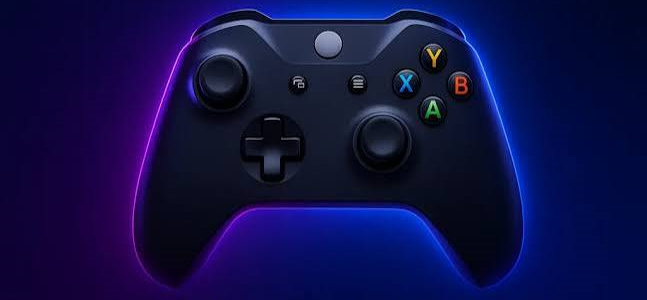
Steps to Connect an Xbox Controller to an iPhone
In this section, you'll see how to connect your Xbox controller to your iPhone using Bluetooth. Just follow the simple steps to pair both devices and start using your controller.
Turn On Your Xbox Controller
Press and hold the Xbox button on the front of your controller for a few seconds to turn it on.
Enable Bluetooth on iPhone
Go to Settings > Bluetooth and turn Bluetooth ON. You can also open the Control Center and make sure Bluetooth is enabled.
Put Controller in Pairing Mode
Press and hold the small Connect button (next to the USB port on top of the controller) until the Xbox light starts flashing quickly. This means it is in pairing mode.
Connect the Controller
On your iPhone, go to Settings > Bluetooth and under “Other Devices”, tap “Xbox Wireless Controller”.
Confirm Connection & Play
When the Xbox light stops blinking and becomes solid, your controller is successfully connected and ready to use. Open any supported game and start playing.
Benefits of Using a Controller with iPhone
Using a game controller with your iPhone makes gaming much smoother and more enjoyable. It gives you better accuracy, a clearer screen view, and a more console-like experience anywhere you go.
Better Control
Physical joysticks and buttons give much more precise control compared to touching and sliding on a screen.
Custom Button Settings
iPhone supports controller settings where you can adjust button controls for different games to match your preference.
Clear Screen View
Since you are not using your fingers on the screen, your view stays clear and you can see the full gameplay easily.
Portable Gaming Experience
You can turn your iPhone into a handheld gaming console and enjoy games anywhere, like during travel or trips.
Frequently Asked Questions
Which Xbox controllers work with the iPhone?
Only Bluetooth-enabled Xbox controllers work with iPhone, including the Xbox Series X|S, Wireless Controller (Model 1708), and Elite Series controllers. Older controllers without Bluetooth are not compatible.
How do I put the controller in pairing mode?
Press and hold the Pairing (Connect) button on the top of the controller until the Xbox button starts flashing quickly. This indicates the controller is in pairing mode.
Can I use the controller for any games?
You can use an Xbox controller only with games that have controller support on the iPhone. Not all games are compatible.
Why is my controller not showing up in the Bluetooth list?
Make sure the controller is in pairing mode and Bluetooth is enabled on your iPhone. If it still doesn't appear, restart both devices and try again.
How do I know when the connection is successful?
The connection is successful when the Xbox button stops flashing and turns solid white. It will also show as Connected in your iPhone's Bluetooth settings.
How do I disconnect the controller?
Turn off the controller by holding the Xbox button for a few seconds until it powers off. You can also go to Bluetooth settings on your iPhone and tap Disconnect next to the controller.